
New free tool
Timezone Planner: Coordinate Your Guild in UTC
By Top Heroes Tools ·
One UTC meeting time. Everyone’s local time beside it. Our new Timezone Planner helps international guilds coordinate rallies and events without doing timezone math in chat.
Open the Timezone Planner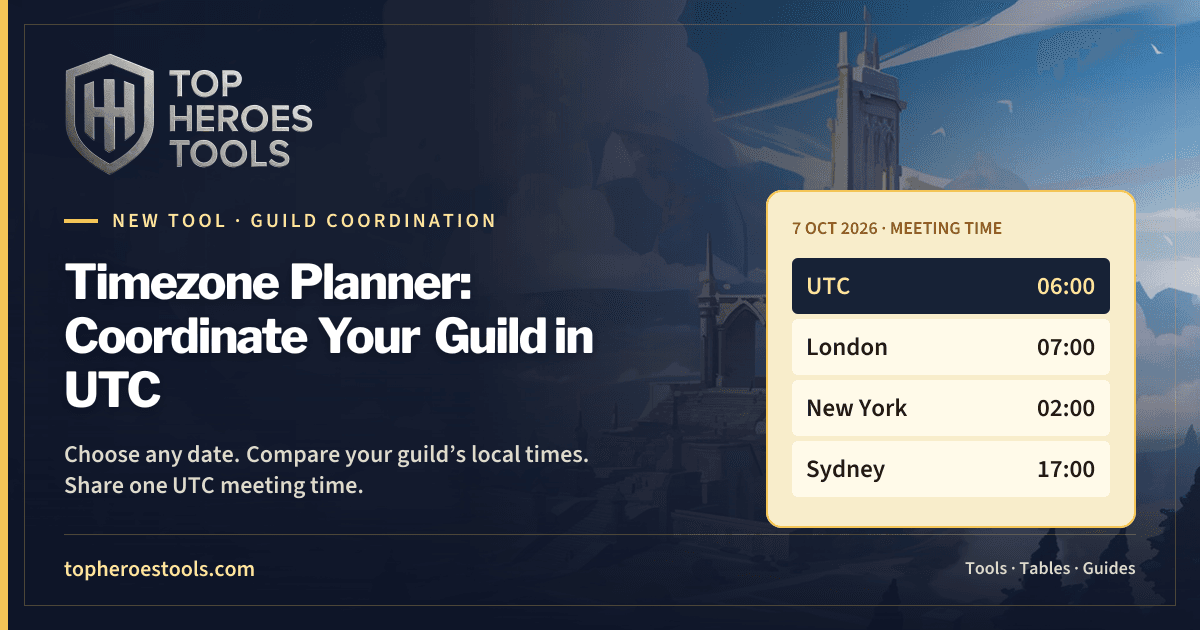
Why your guild will find it useful
“Meet at six” means different things when your guild spans continents. Keep the game’s UTC time as the shared reference, then compare the local time and date for each player or group. The selected column lines up everyone’s times, making early mornings, late nights, and previous-day meetings easier to spot.
You can plan weeks ahead with the date picker, search timezone cities in one field, give rows useful labels, and paste the converted times into chat. Locations stay saved in your browser. The mobile view shows three hours at a time so the controls and times remain readable.
How to use the Timezone Planner
1. Add your guild’s locations
Select Add timezone, then type a city or timezone keyword, such as Sydney or London. Choose a matching timezone from the dropdown and add an optional label, such as a player name. Use the edit or delete buttons to manage your rows.
2. Choose the event’s UTC date
Use the nearby date buttons, previous and next day arrows, or calendar and Go button to browse any UTC date. For an exact event time, enter the date and time under Plan a game time (UTC), then select Compare time.
3. Pick a meeting hour
Select an hour in the UTC header or any time cell. The matching column is highlighted across every location, and each cell shows the local time and date. On mobile, use Previous and Next to browse three UTC hours at a time.
4. Share the local times
Select Copy times and paste the result into guild chat. The message includes each location’s time, date, and UTC offset. Switch between 12-hour and 24-hour displays, or select Now to return to the live comparison.
Example: a rally at 06:00 UTC
For October 7, 2026 at 06:00 UTC, add London, New York, and Sydney. Choose October 7 and select the 06 column. These are the local meeting times on that date:
| Location | Local time | Local date |
|---|---|---|
| UTC game time | 06:00 | 7 October |
| London | 07:00 | 7 October |
| New York | 02:00 | 7 October |
| Sydney | 17:00 | 7 October |
New York players would be joining at 2 AM, while Sydney players would join at 5 PM. Try another UTC column if that does not work for your roster. Always include the date when you share a meeting time: offsets can change during the year.
Dates, daylight saving, and sharing
Does the timezone planner adjust for daylight saving time?
Yes. It uses named timezones, such as Australia/Sydney, and the browser’s timezone rules for the selected date. Local times and UTC offsets are recalculated when you change dates, including daylight saving transitions. UTC itself does not change. Keep your browser and operating system updated so their timezone rules stay current.
Can I plan beyond the next 24 hours?
Yes. Choose any UTC date with the calendar, or browse nearby days. The comparison grid shows all 24 UTC hours on that date, with the corresponding local date in each timezone. Changing the date keeps your selected UTC hour and minute.
Are my timezones saved or shared automatically?
Your locations and labels are saved locally in this browser when browser storage is available. They do not sync between devices or appear for other players when you share the page link. Use Copy times to share your selected meeting time with the guild.
Does the planner know the game’s event schedule?
No. Enter the UTC date and time shown in the game or agreed by your guild. The planner converts that instant into everyone’s local time; it does not fetch or confirm event schedules.